
Why does Connecting Steps say my school is over quota?
When logging into Connecting Steps, you may get a message that your school is over quota and you are not allowed to log in. This means that you have too many students assigned to Connecting Steps licences. An administrator for your setting can fix this in My BSquared.
An administrator can also view the number of licences used/remaining in My BSquared by clicking on their name in the top right of the screen and then selecting 'Licence'.
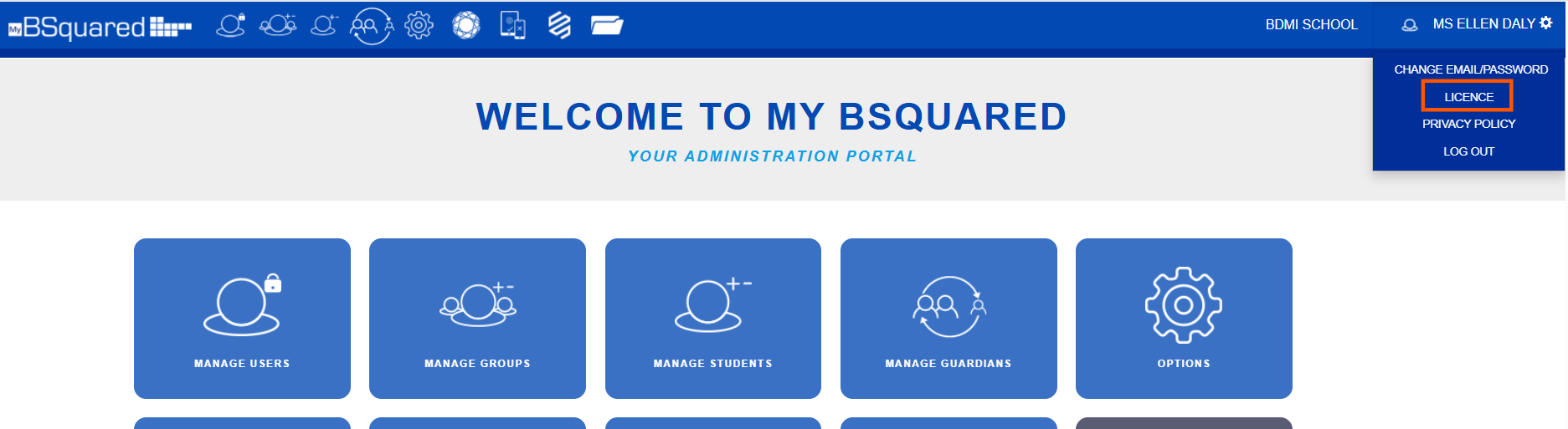
- As an administrator, log into My BSquared.
- Navigate to the Manage Students screen.
- In the Software column, deselect the Connecting Steps icon for any student that does not need a licence. A green icon means the student has a licence, a red icon means they do not.
- Alternatively, if there are students that have left your setting, you can add a leaving date to the student record. The student will be sent to your Historic Students list and will no longer appear in Connecting Steps.
- On the Manage Students screen, click on the pencil icon in the Edit column next to the student name.
- In the Leaving Date, use the calendar to select the student's leaving date. Leaving dates cannot be set for the future.
- Click Save.
- The student will be sent to your Historic list and will no longer be visible in Connecting Steps, which will free up a licence.