
Using the Evisense Feed
The Evisense feed is the main screen you will access when using Evisense. There are lots of controls to allow you to customise what you see. Most of the settings are the same between the app or website. All of the app’s filtering controls are under the green funnel.
How to filter by post type
The guide below shows you how to filter by post type. The list of post types you see when using Evisense will be set by your school. When you first open Evisense you will see all the different post types your school are using. Under User Settings you can set what posts you want to see when you open Evisense.
If you are using the Evisense app, you access this filter by clicking on the green funnel icon and clicking on Post Types.
How to filter by group/student
The guide below shows you how to filter by group or student. You can view posts for All Groups, a single group, a single student or multiple students within the same group. When you first open Evisense you will see posts for All Groups. Under User Settings you can set the group you want to see when you open Evisense.
If you are using the Evisense app, you access this filter by clicking on the green funnel icon and clicking on Groups.
How to use advanced filtering
To find posts more efficiently, use the funnel icon in the top left to filter posts in your feed.
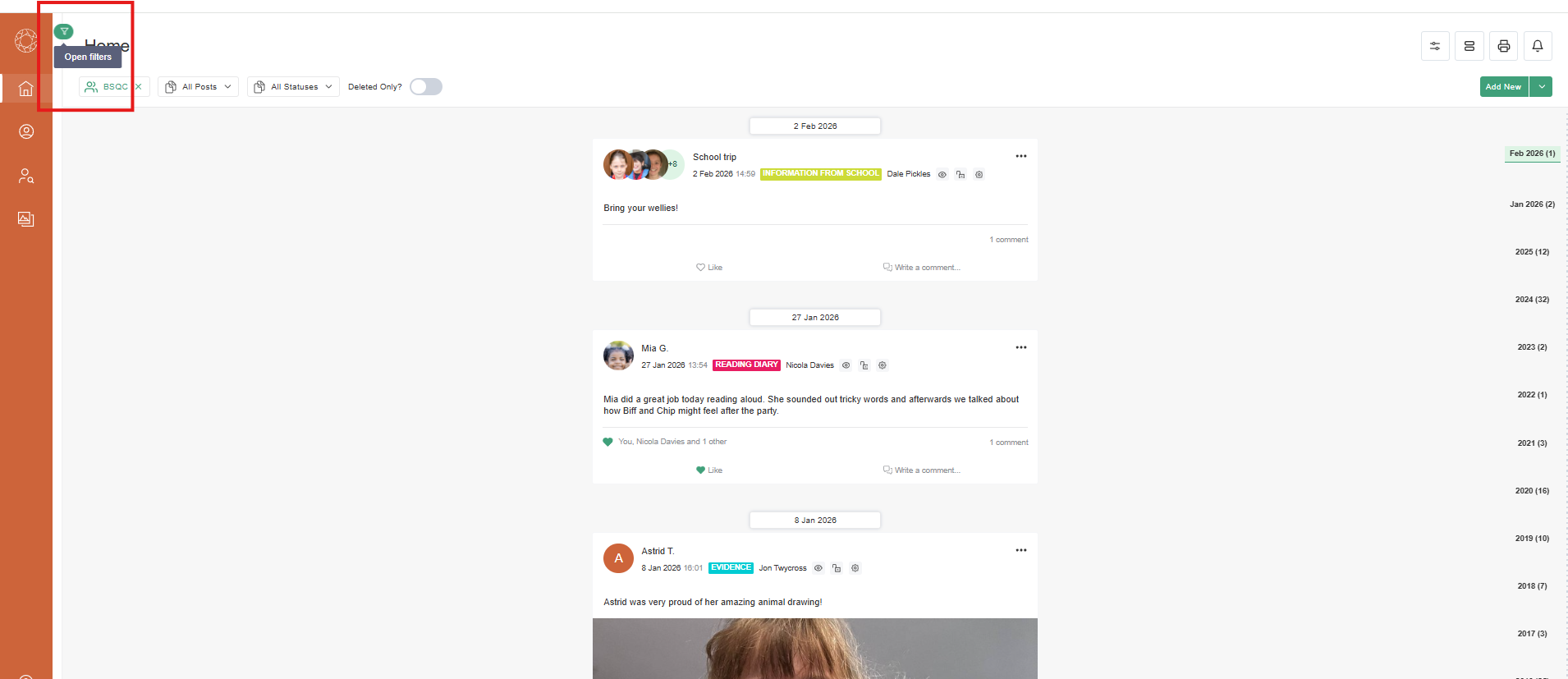
Filter options include:
- Curriculum - to view posts linked to a specific framework, subject, profile, level and strand. When you filter by curriculum content, the feed will only show posts that have been linked to that curriculum area or the assessment points within.
- Tags - to view posts with specific tags. When filtering by multiple tags, the system uses an ANY rule. If you filter by Cognition and Learning (CL) and Communication and Interaction (CI), it will show posts with either of these tags. It does not filter to posts that are tagged to both.
- Privacy Groups - to view posts marked with a specific privacy level.
- Creator - to view posts created by a specific user.
- Date Range - to view posts created within a date range.
- Media Types - to view posts with photo, video or audio files.
You can use multiple filters at the same time.
Using the Timeline
The timeline allows you to jump back in time to look at evidence or other posts. This is a great way to show progress for a student, to compare their work from 2 or 3 years ago to something they have created now. It is simple to use and the dates on the timeline and the post counts update based on any filters you have applied. The guide below shows you how easy it is to use.